BEST IN: FOOD SAFETY LEVEL 1 CERTIFICATION AND WHMIS AWARENESS ONLINE TRAINING
Welcome! To login for E-learning click the orange link above.
“Education is not intended to fill a pail…but to light a fire” Plutarch 46-119 AD
Proudly Western Canadian since 1994, KnowledgeWare provides online safety training courses, compliance tracking services, and custom course development. We support independent business initiatives, the pursuit of truth, liberty, and respect for all persons, and the Canadian Charter of Rights and Freedoms. Real people answer our telephones.
Online Courses
A Few Good Courses…
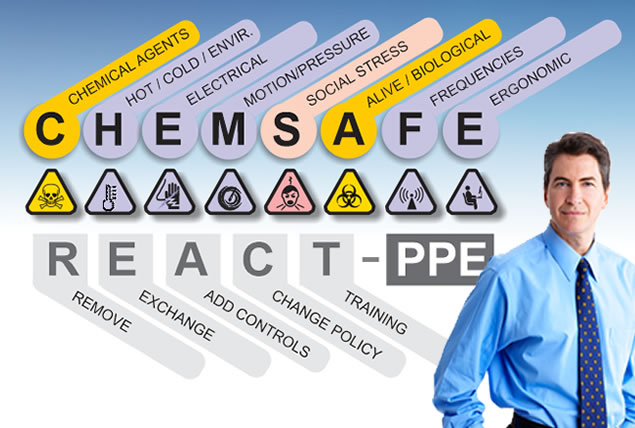
Since 1994 we’ve been building software training systems, including Canada’s first commercial Workplace Hazardous Materials Information System (WHMIS) awareness training programs. We maintain a small set of quality courses for the Canadian market, including Canada’s best selection of WHMIS worker awareness courses. Scroll down or click to see more. Click for more info…
Compliance KPI %
Industrial LMS Compliance System
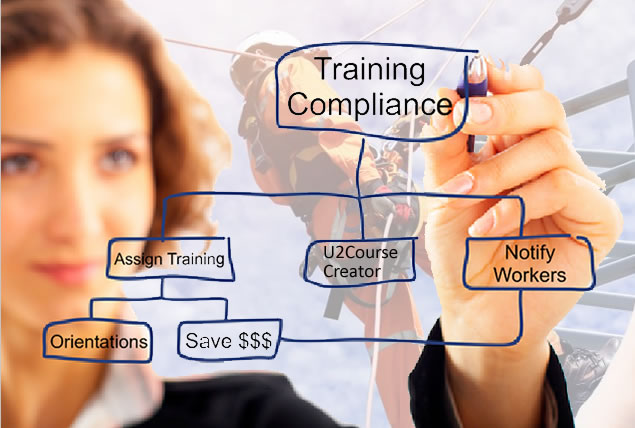
Simply! Tracking is an easy-to-use learning management system that documents worker training. It allows you to delegate compliance responsibilities to supervisors or department managers, then monitor company-wide training compliance with management KPI graphs. Build and delivery your own company training content with U2Course creator. Click for more info…
Content Creation

Outsource Your Content Creation
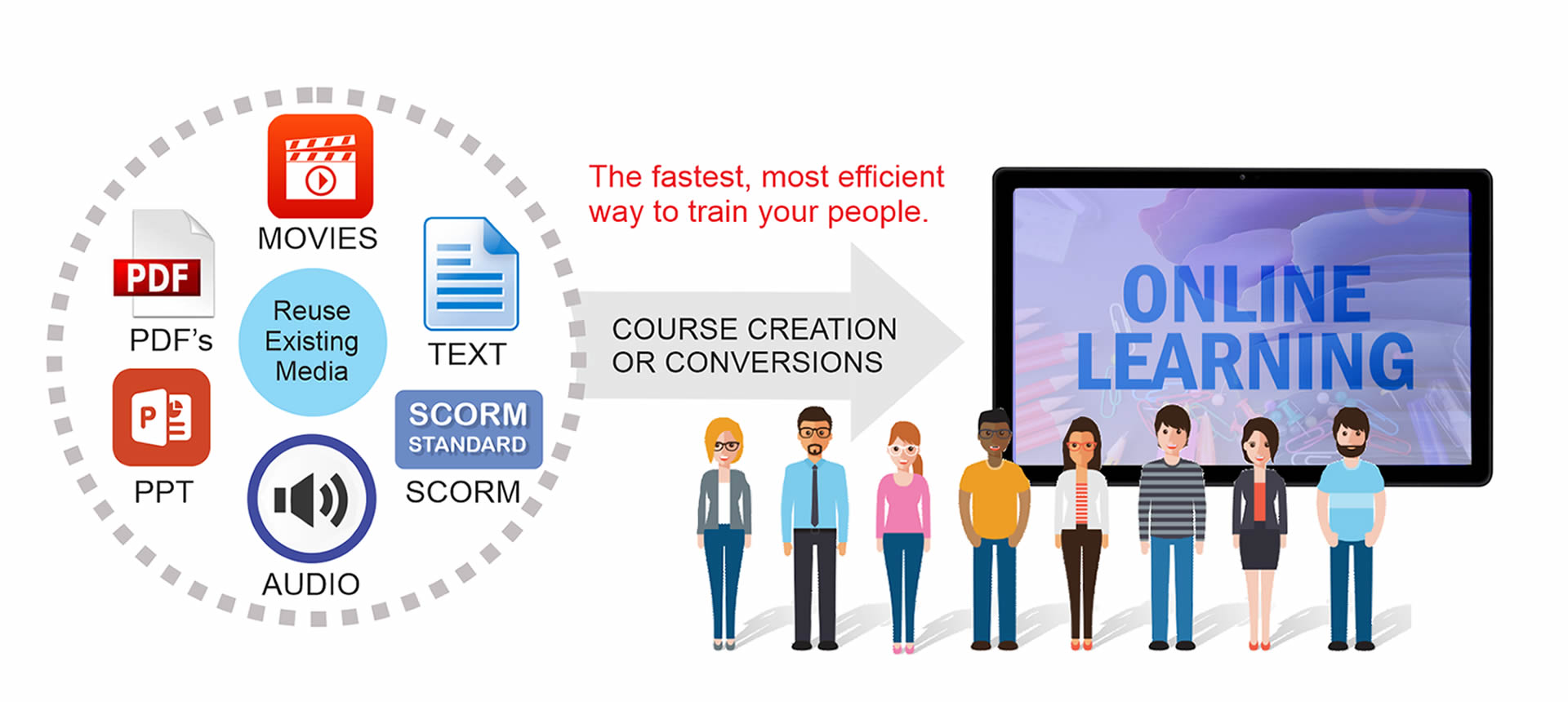
Let us put your company training materials online – we provide cost-effective content conversions and development services including from paper-based or powerpoint to SCORM compliant HTML5 courses. Content design and writing, graphics, infographics, video up to full length documentaries. Contact us for a free quotation. Click for more info…
Canada’s Best Online WHMIS Awareness Training!
All courses based on most recent WHMIS December 2022 amended rules
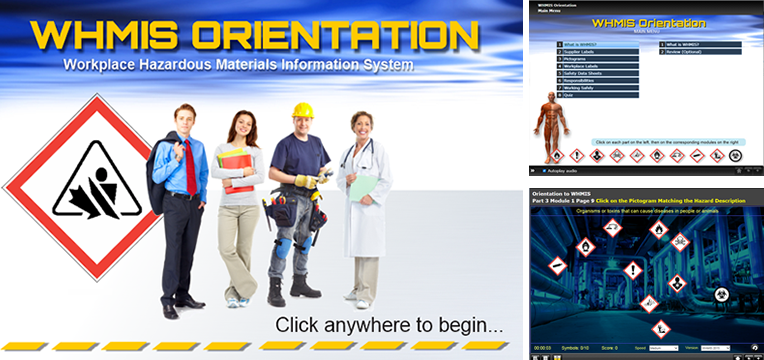
WHMIS Orientation
For initial introduction to WHMIS awareness. Time: About 2 hours.
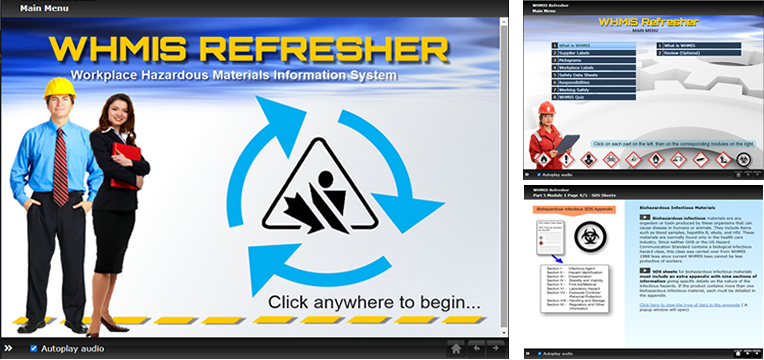
WHMIS Refresher
WHMIS Refresher: For persons repeating training. Time: About 75 minutes.
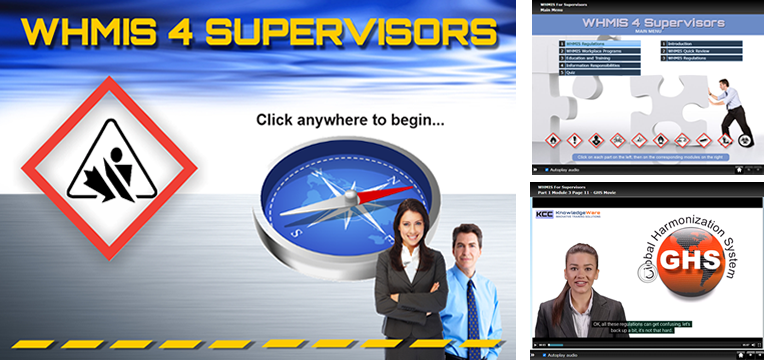
WHMIS 4 Supervisors
WHMIS for Supervisors: Goes deeper into WHMIS regulations and responsibilities. Students should already have competed WHMIS Orientation or have previous training. Time: About 90 minutes.
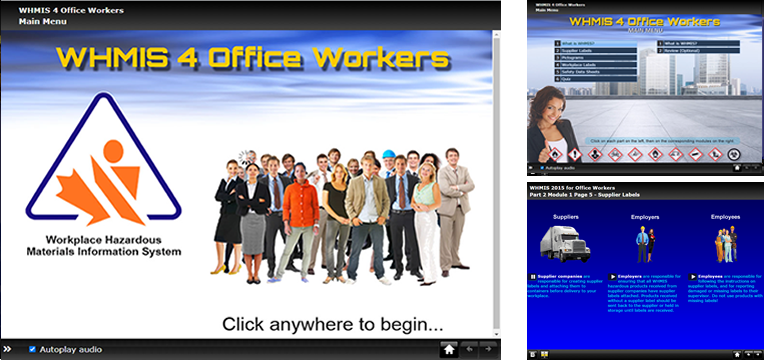
WHMIS 4 Office Workers
WHMIS for Office Workers: A lighter WHMIS course for persons working around but not directly exposed to hazardous products. Time: About 45 minutes.
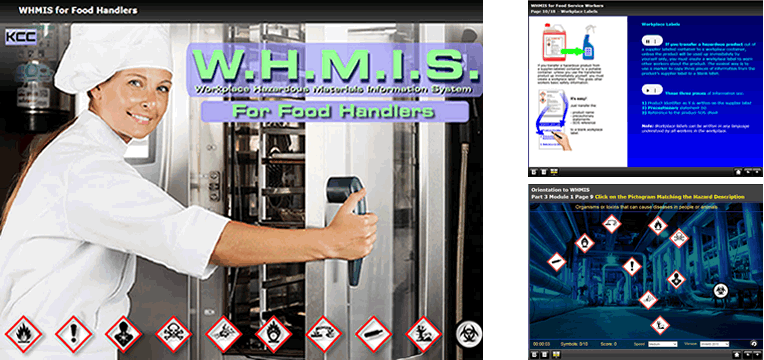
WHMIS for Food Handlers
WHMIS for Food Handlers: A shorter course covering the basics for food service workers. Time: About 45 minutes.
Can we create a custom WHMIS course for your organization?
Workplace Hazardous Materials Information System online training courses – click the images above for more information
*NEW* Need MORE than WHMIS? Try WHMIS + onboarding training for young and new Canadian workers
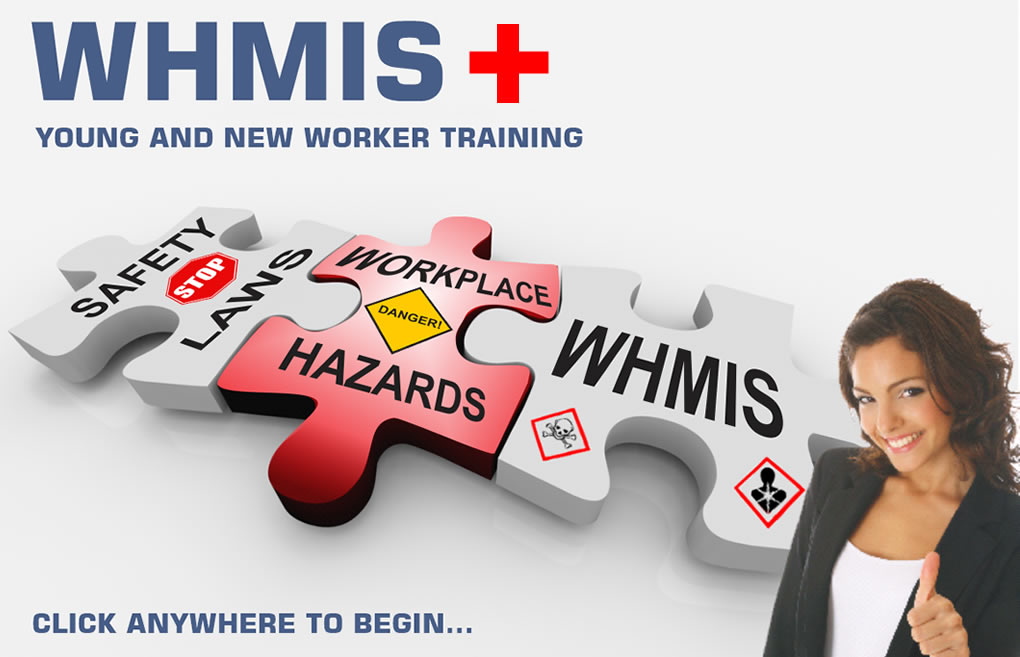
Please contact us for information on how this application can assist your onboarding process.
Customizable Onboarding Training for New Workers
WHMIS + is intended as an onboarding safety training program for young and new Canadian workers. It goes beyond WHMIS to teach new and returning workers the fundamentals of:
- basic rights and responsibilities under Canadian safety laws
- workplace hazards and how to control them
- the use of personal protective equipment
- WHMIS (Workplace Hazardous Materials Information System)
This course takes about 4 hours to complete and is equivalent to about an 8 hour classroom training session. The course design allows customization for your company by allowing you to input your own PDF and movie best practices / standard operating procedures that new workers are required to review and acknowledge compliance with. Student progress and best practice acknowledgments are automatically stored to the database for compliance documentation. Use this system to save time and people resources and to remotely train workers or contractors before they come on site.
Food Safety Ticket Best Seller:

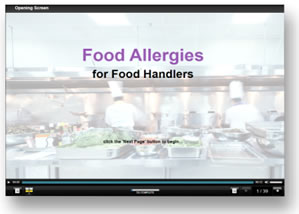
New: Food Allergies for Food Handlers
This unique new course teaches food service staff about the critical dangers of certain types of foods for allergic persons, how to deal with allergic persons, and what to do in the event of an anaphylactic attack. Click the image to the left for more information.
Food Safety Level 1 Training
Need a food safety certificate…we have Canada’s most comprehensive food safety 2 PACK training package! BE BETTER QUALIFIED! Includes:
- Food Safety for Food Handlers (5 year level 1 certificate)
- WHMIS for Food Handlers (Workplace Hazardous Materials Information System)
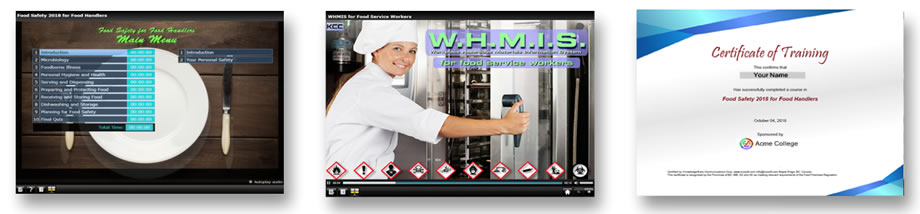
Food Safety for Food Handlers level 1 training (5 year government recognized food safety certificate) valid in BC/YT/SK/MB/ON/NB/NS/PE/NL. Get your certificate online today in as little as 7 hours.
Do the optional WHMIS (Workplace Hazardous Materials Information System) course in about 45 minutes for a better qualification that employers value.
New: Instructor Skills Online
An Online Instructional Skills Course for New Adult Educators
- How to develop and deliver effective adult instruction (classroom or online)
- Includes up-to-date adult learning theory
- Deliver training effectively with tools like Zoom™
- Avoid the common painful mistakes made by new instructors
- Developed for anyone who wants to teach adults
- Provides an effective update for seasoned classroom teachers
- Helps keep organizational standards and student satisfaction high
- Equivalent to a 2-3 day classroom instructional skills seminar
- A more cost-effective way to train new instructors
- Complete this course online in about 9 hours and print your certificate
Written by a PhD trainer with 35+ years ‘in the trenches’ teaching experience. Organizational discounts available.

Can we put your company or association training online?
Servicio de desarrollo de software en español